
Query Builder
Build charts from the markers your experience sends: choose metrics, filter and break them down, pick a visualization, and save the query to a dashboard.
The query builder is how you turn the markers sent to Gamebeast from your experience into charts. You choose what to measure, filter and group it, pick a visualization, and save the result as a query on a dashboard.
Creating a query
Open a dashboard, click Edit, then Add panel → Query. The query builder opens. When you save the query, it's added to the top of the dashboard and you're returned to it with your other unsaved edits intact.
To change an existing chart, choose Edit from its ⋮ menu.
Pick the kind of query from the buttons at the top of the query setup: Insight (described below), Funnel, Heatmap or Retention.
On the right side of the query setup, you configure the data source (Metric) for your query and group your markers by various properties and arguments.
Metrics
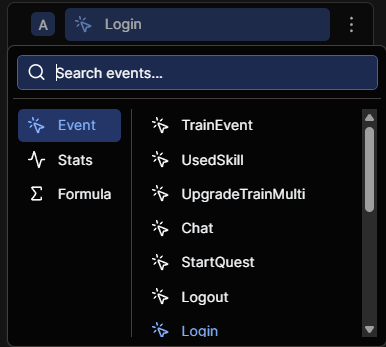
The metrics field is where you select your data source for the query. You can choose from a list of available metrics, such as player joins, player leaves, and custom markers sent from your experience.
Metric types
Metrics have different types that determine how the data is aggregated and displayed in the visualization.
These are the default and custom event markers you send from your experience, such as Login and Logout.
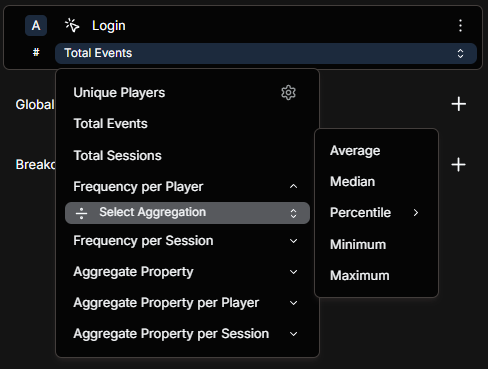
Event type metrics allow you to aggregate data in more advanced ways, such as Frequency per User, or even more complex calculations such as Monthly Active Users.
Local filters
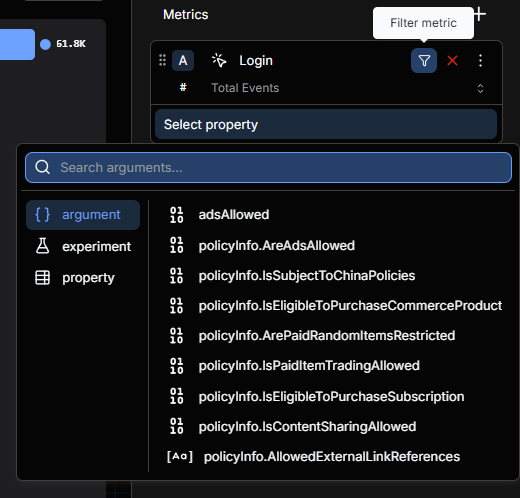
Local filters allow you to filter a specific metric in the query by its properties, arguments or experiments.
See global filters below for more information on the available filter options.
Global filters
Similar to local filters, global filters allow you to filter all of your metrics by a shared property, argument, or experiment.
- Property: Provided automatically by Gamebeast, has general global information about the marker, such as
Country,Device,Language, etc. - Argument: Custom arguments that you have sent with your markers, such as a
Level,ItemNameor any other custom data you want to track. - Experiment: If you have experiments running in your experience, you can filter your data by the experiment name to see how different variations are performing.
- Cohort: Only include players in one of your user cohorts.
Breakdowns
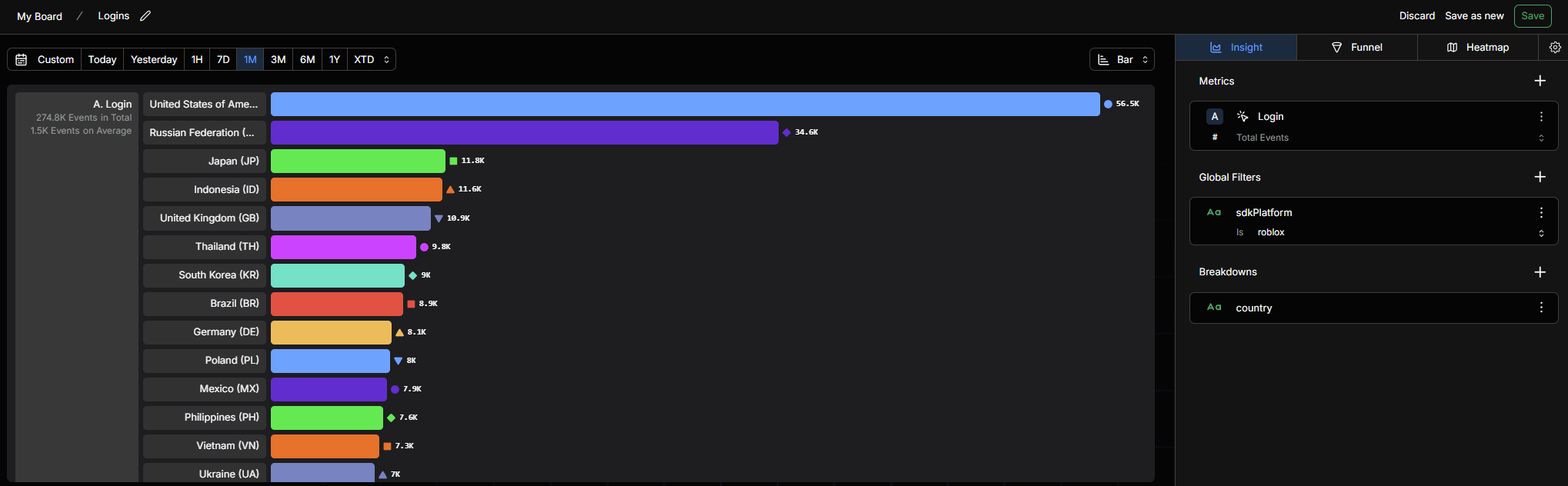
Finally, breakdowns allow you visualize your data by variations in a specific property or argument.
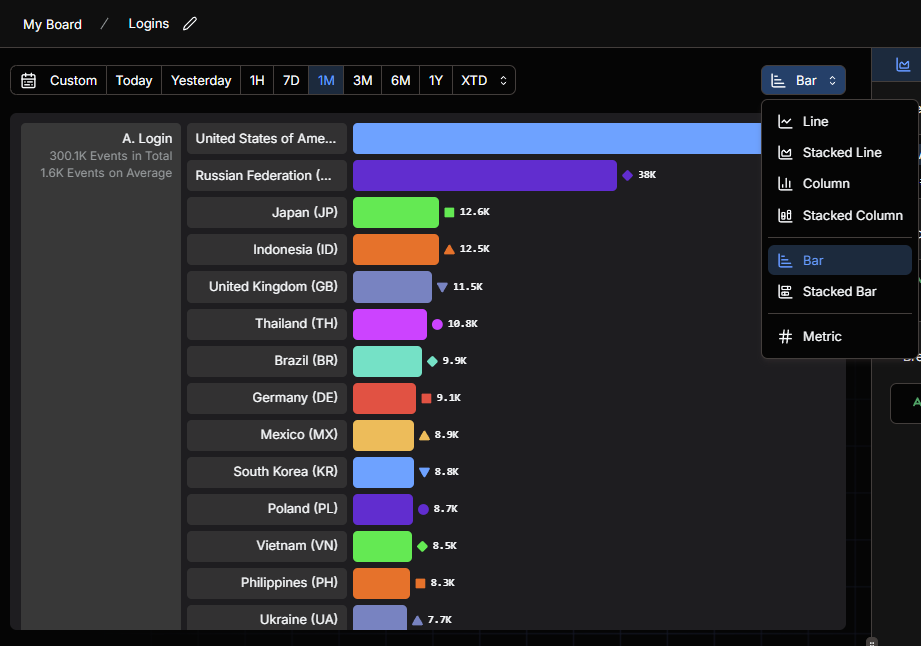
For example, here is a breakdown of the Country property, which will show you how many players from each country have joined your experience.
Configuring the visualization
At the top of the visualization preview, you can filter the data by time range, and choose from a variety of visualization types, such as line charts, bar charts, and column charts.
Saving
Give the query a name and save it. To add a description, click the ⚙ beside the query types at the top of the query setup. The description shows under the chart's title on every dashboard it's on. A saved query records who created it and when it was created and last edited; hover the ⓘ beside the chart's title to see them.
A query can appear on more than one dashboard. Editing it changes it everywhere. See Dashboards for arranging, sharing and organizing your charts.
Dashboards
Dashboards collect your saved queries, notes, headings and images on a grid you arrange yourself, organized into folders in the sidebar, and can be shared with anyone through a public link.
Heatmaps
Heatmaps are a powerful way to visualize user interactions in your Roblox experience. They allow you to see where players are spending their time, which areas are most popular, and how players are moving through your game.